Evaluation Studio
Evaluation Studio is Prepara's tool for video assignments in college courses. Instructors use it to comment on moments in each student's recording and to grade the recording with a rubric.
How it works
You set up the assignment, the student records it, and you comment on it and grade it.
- 1
Set up the assignment
You choose a pack, then a template from that pack, then the assignment details. You set “Tries after feedback” to choose how many times students can record again after feedback.
The professor creates a Pitch to a Buyer assignment from the Professional Selling pack, with five tries after feedback. - 2
The student records the assignment
The student records in the browser with a guide beside the camera and submits the video. The student can record again after reading the feedback when tries remain.
The student records the pitch beside the guide, submits it, and later sees the Try again card with five tries left. - 3
Comment and grade
You write comments at specific moments in the video and review the draft rubric grade that the Studio prepares. You post the grade to the course gradebook.
The professor reads comments at their moments in the video, posts the rubric grade of 85, and the grade shows in the gradebook.
Examples from three more packs
A debate, a live discussion and an oral exam, each as the Studio shows it to the professor.
Four students debate in one recording, and each student gets a draft grade.
Live Discussion Rooms
Students discuss a case in small groups in a browser video room. You then read a report on the discussion and each student’s speaking time.
- Students follow steps to watch a short film, read, vote, discuss and reflect.
- The Studio records the whole discussion and each student’s own camera and microphone.
- You read the group’s decisions, its strongest arguments and how long each student spoke.
- You can let a group meet again, with each student’s higher grade counting.
Tries after feedback
Students can record again after reading their feedback, within the number of tries you allow. Each student’s highest grade counts and goes to the course gradebook.
- Students see a tab for each try, with the try whose grade counts marked “Counts”.
- Students see the grade change and the rubric lines that changed.
- Students use “Compare tries” to play both videos side by side.
Speaking measures and video evidence
You see speaking pace, filler words, long pauses, hedging phrases and where the student looked in the panel beside each recording. You check the video moment for each finding before grading.
Five packs of ready-made assignments
Each assignment includes its rubric and step-by-step guide, and you can also write your own assignment and rubric.
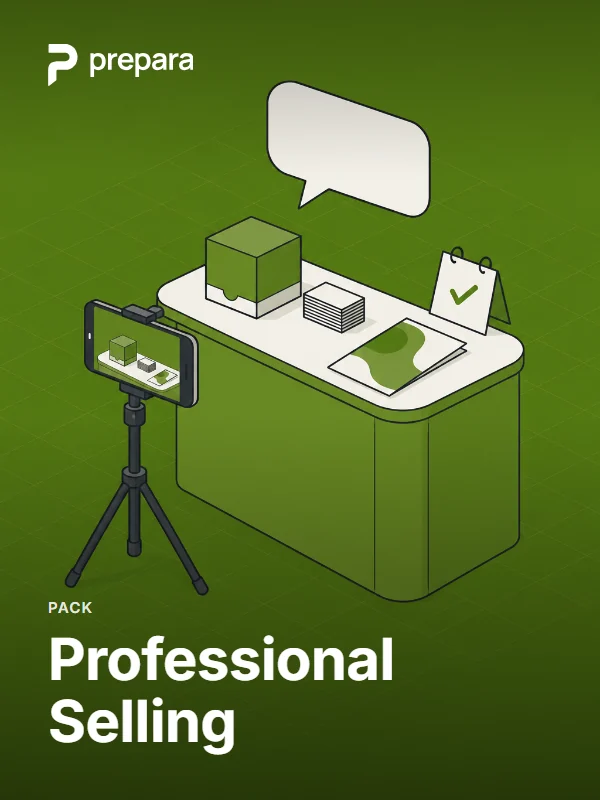
Professional Selling
Pitches, discovery calls, objection practice and full sales calls.
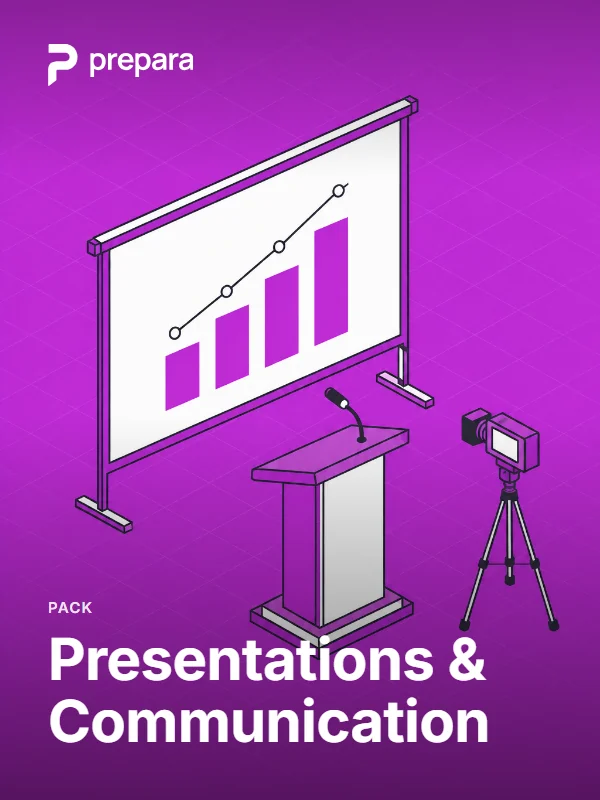
Presentations & Communication
Speeches, presentations and impromptu answers.
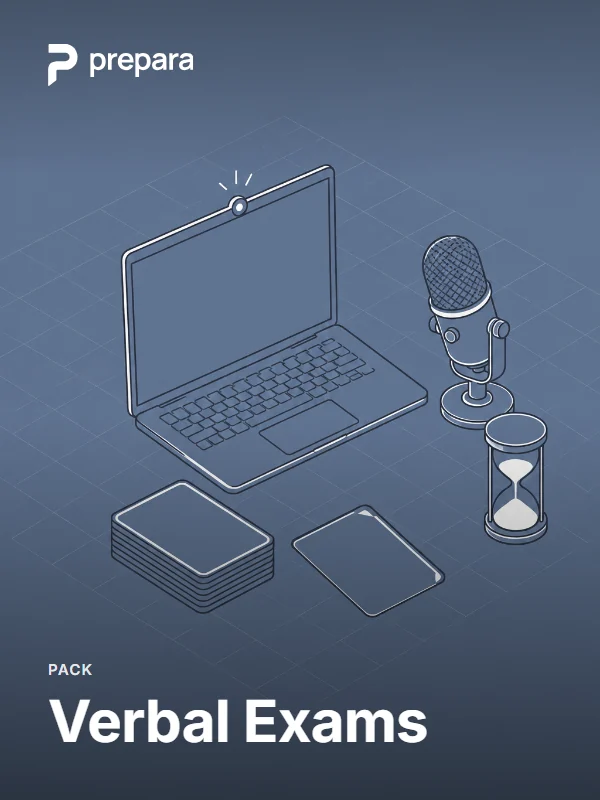
Verbal Exams
Timed oral exams and project defenses, with a practice try first.
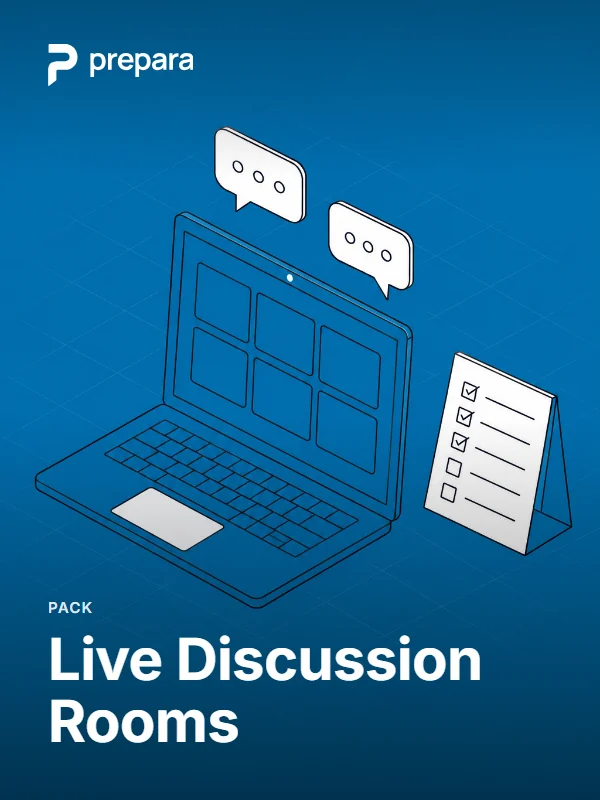
Live Discussion Rooms
Small groups discuss a case in a video room, step by step.
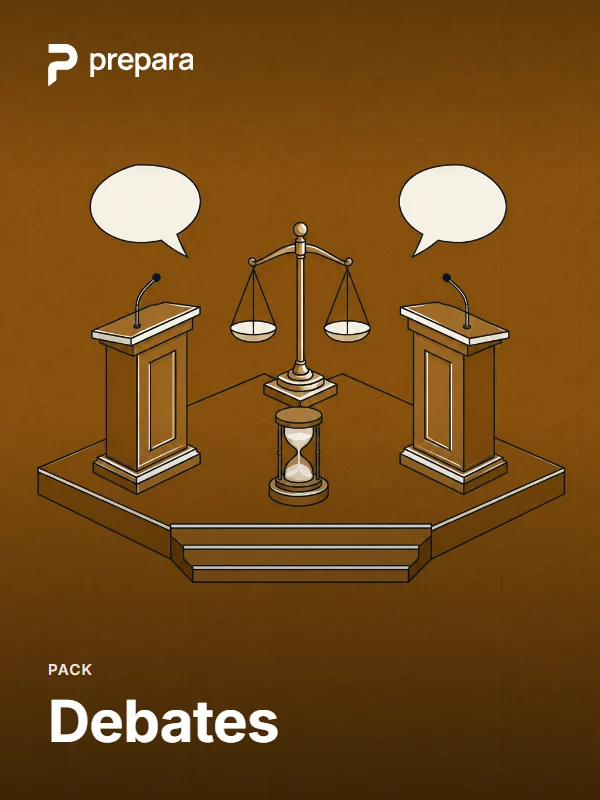
Debates
Two sides prepare apart, then argue in timed rounds before a judge.
Questions
Do students need to install software?
Students record and submit assignments directly in the browser on a laptop or phone.
Who decides the grade?
The Studio prepares a draft rubric grade. You choose for each assignment whether the grade posts on its own or waits for your review.
Can students record together as a group?
Students meet and record together in Live Discussion Rooms in the browser. You grade each student on the student’s own recording.
Can I use Evaluation Studio with my textbook?
You can use Evaluation Studio in any course with any textbook.
Where do grades go?
Each student’s grade that counts goes to the course gradebook. The grade also goes to the Canvas LMS gradebook when your course is connected.
How do students join?
Students join through your LMS course roster or through email invitations.
Other Prepara tools
Use Evaluation Studio in your course.
Prepara sets up the Studio with you using your LMS course or email invitations and replies to every request.